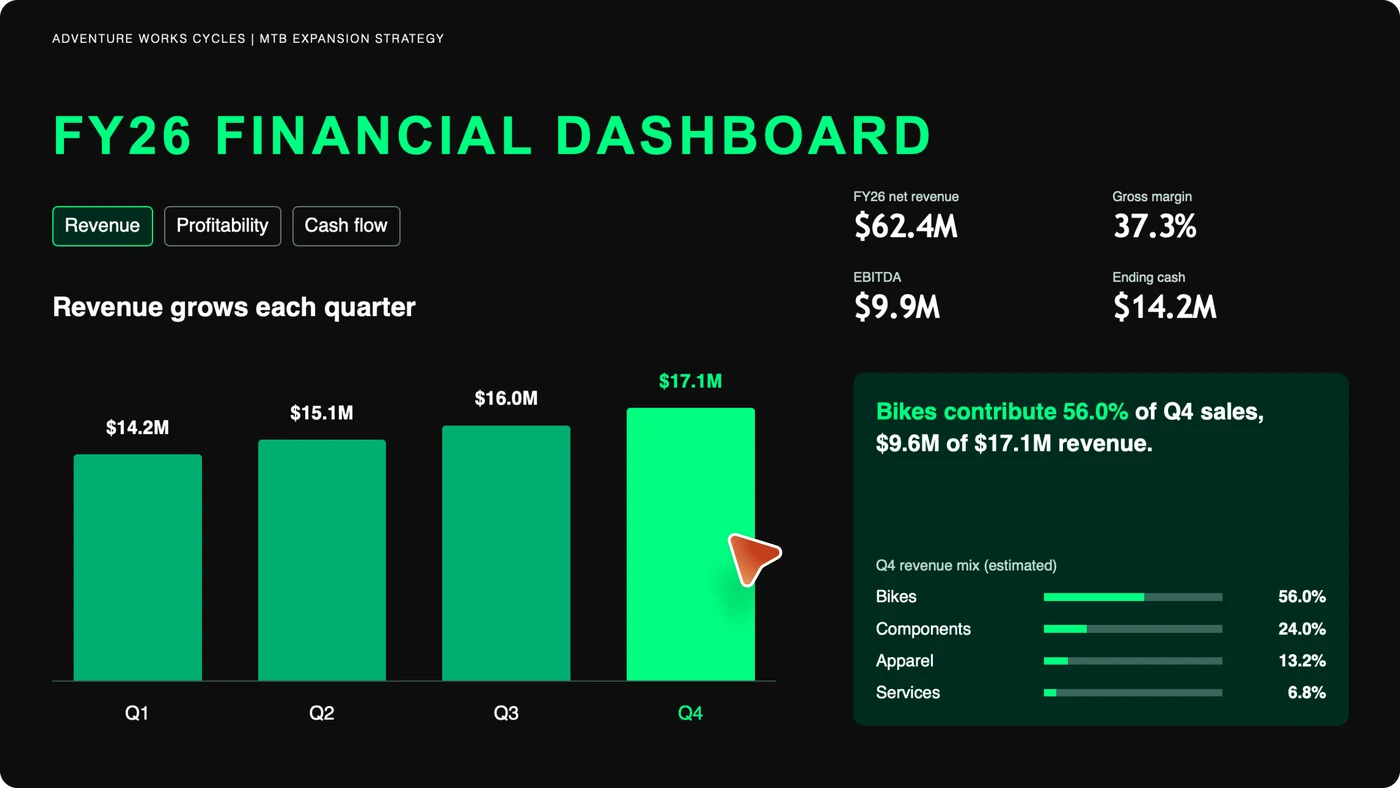
PowerPoint Copilot can now build slides that people can explore. Ask for a timeline or a filterable dashboard, and it creates an interactive slide from your prompt or source material.
Mike Tholfsen has published a full tutorial. He calls it one of the best PowerPoint features he has seen. Having watched it, I can see why he's excited.
Watch Mike's full tutorial on YouTube
What Interactive Slides does
Describe what you want to explain and Copilot builds a full-slide visual with interactive elements. Microsoft's examples include complex concepts, comparisons, timelines and data.
You could make a dashboard people can filter during a meeting, a before-and-after slider, or a diagram where clicking a section reveals more detail.
How you get to it
Select Interactive Slide from the Home or Insert tab. You can also choose Create interactive slide in the Copilot chat pane. Start with a prompt or use material such as an Excel workbook or Word document.
Mike's video runs through the basics and then shows a longer set of examples. He's also shared his demo deck and prompts, which gives you something to try for yourself.
Ideas for teaching
- A before-and-after slider showing coastal erosion or a high street in 1950 and today.
- A labelled diagram of the heart or a plant cell where students choose which part to explore.
- A timeline where clicking a date opens the event, so the class can follow questions as they come up.
- A quick check-for-understanding quiz based on the content already in the deck.
For staff training or apprenticeship sessions, you could build a filterable dashboard from a spreadsheet of results. In PowerPoint Live, each attendee controls their own view, so their selections won't change what other people see.
What to check first
Licensing. Interactive Slides don't have a separate licence. Microsoft says they are available to eligible users who already have access to Copilot in PowerPoint, including Microsoft 365 Copilot Basic and Premium. Your subscription and organisation settings affect what you can use, so check before promising the feature to staff.
Editing. You can't edit the interactive content directly on the slide. Ask Copilot to make changes, then check that the labels and behaviour are right.
Sharing. Interactive Slides work in PowerPoint Live, where each attendee can explore independently. On iPhone and Android, and when you print or export to formats such as PDF, the slide becomes a static image.
Accessibility. Microsoft documents keyboard access: press Tab to move into the interactive content and through its elements. Each element has a visible focus indicator. Microsoft says some keyboard navigation still needs work, and its guidance doesn't spell out screen-reader behaviour for the interactive elements. Test it with your learners before relying on it.
Accuracy. Copilot generates the content and the behaviour behind the interactions. A polished slide can still contain an error, so check every detail before it reaches a class.
Start with one slide in one lesson. Test it on the devices your learners use and check its keyboard access before you build more.
What would you make interactive first?