A skill is a saved set of instructions that Copilot Chat follows for a specific job. You write it once and Copilot uses it whenever that job comes up, so you don’t have to keep rewriting the same prompt.
Under the bonnet, a skill is a short text file called SKILL.md. It has a name, a description of when to use it and the instructions themselves. It can also include supporting files, such as a style guide or word list.
Copilot reads the description to decide whether a skill fits your request. If it does, Copilot loads and follows the instructions. You can also select a skill yourself.
The worked example in this guide is a UK English Reviewer. You’ll ask Copilot Chat to build it by interviewing you, then use it to tidy text Copilot has written so that each draft gets the same UK English check before you use it.
Before you start
Skills in Copilot Chat are new. Microsoft announced them in Message Center post MC1493223 on 9 October 2026, with rollout running from October to mid-November 2026. Check these four things first.
| Check | What to look for |
|---|---|
| Rollout | Skills may not have reached your tenant yet. Tenants using Information Barriers get them later, in November. |
| Admin settings | Admins can deploy, install or block skills from the Microsoft 365 admin centre under Agents > Tools. If you can’t create one, ask IT whether skills are allowed. |
| Where you work | Use Copilot Chat at m365.cloud.microsoft/chat or in the Copilot app. |
| Your text | Keep personal or sensitive data out of test runs, as you would with any prompt. |
Menu names can change while a feature rolls out. If a button in this guide looks different on your screen, the steps still apply: look for Agents & Skills.
Step 1: Create the skill in Copilot Chat
The quickest way to build a skill is to let Copilot Chat write it for you. If a colleague has already written a skill file, you can upload that instead.
Option A: let Copilot Chat interview you and build the skill
Instead of writing every rule yourself, give Copilot a short brief and ask it to question you before it builds anything.
You make the decisions and Copilot handles the formatting. You don’t need to know the SKILL.md layout or get the front matter right.
The questions also surface choices you might not have considered. Should it rewrite the text or only suggest changes? Should it read attached files? A one-line prompt would leave Copilot to make those decisions for you.
The result is tailored to you. Two people giving the same initial brief can end up with different skills because their answers differ.
1. Give Copilot a brief and ask to be interviewed
Start a new chat and type something like this:
I want to build a skill that reviews text, identifies non-UK English spelling and grammar, and suggests alternative phrasing where there is generic, AI-generated text. Interview me by asking questions to firm up this brief, then create the skill.
2. Answer Copilot’s questions
Copilot will ask you about areas such as input, scope, UK English rules, AI-style writing, output format, rewriting, voice, meaning, audience and connectors.
Your answers determine how the skill behaves.
For this example, the choices are:
- Both pasted text and documents
- Check everything
- Apply all UK English rules
- Check all identified AI-style patterns
- Return the corrected version only
- Rewrite the complete text
- Keep the voice neutral, but avoid em dashes and generic AI wording
- Preserve meaning and formality
- Identify the audience from the content
- Work only with provided text
3. Check what Copilot built
With those choices, the UK English Reviewer:
- accepts pasted text and attached documents
- corrects spelling, punctuation, grammar, vocabulary, tone and clarity
- applies UK spelling, dates and punctuation
- identifies the likely audience from the content
- rewrites the complete text
- removes generic, inflated and AI-style phrasing
- avoids em dashes
- preserves meaning, facts and formality
- returns only the revised text unless you ask for explanations
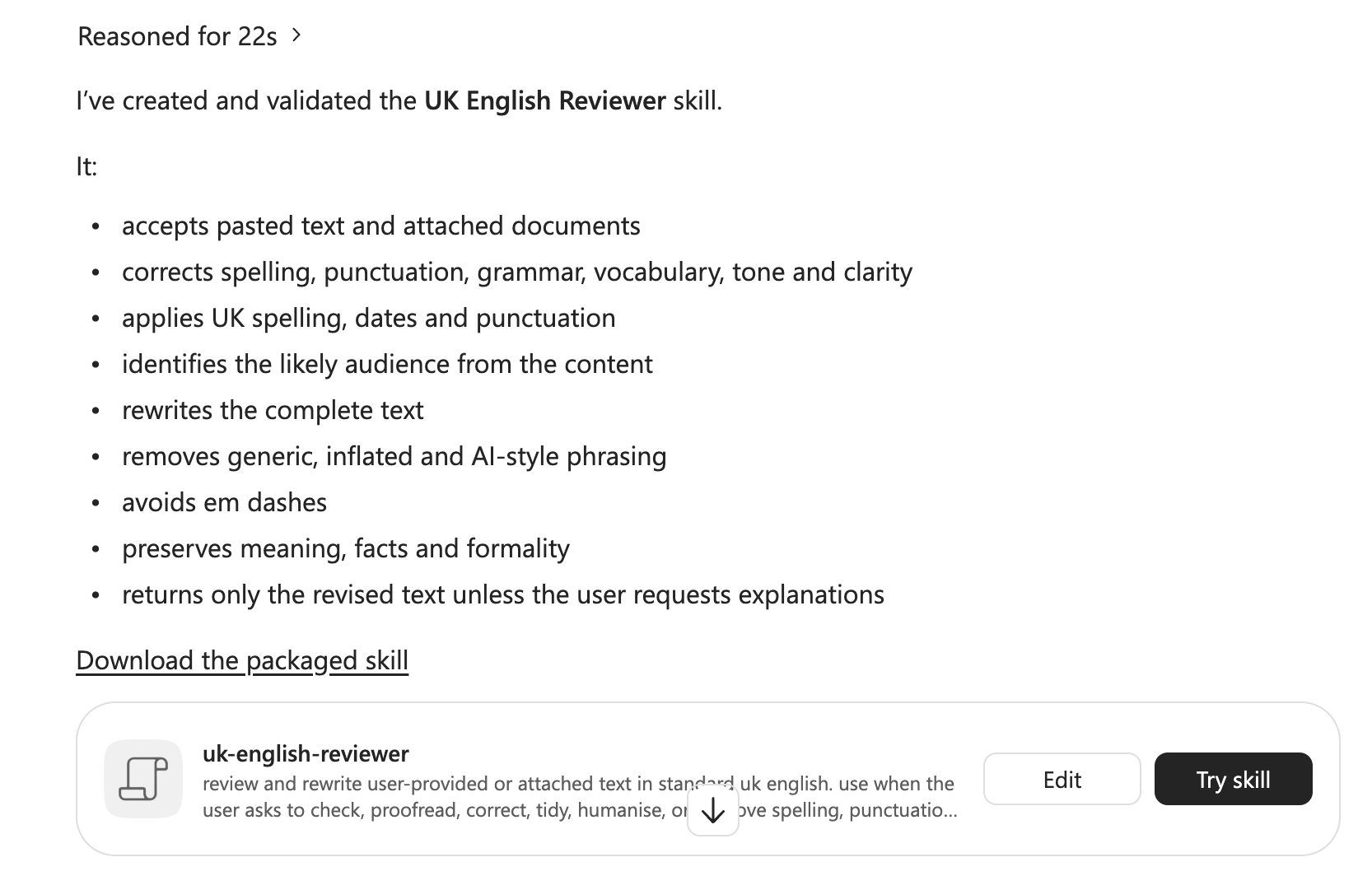
Read the summary against your answers. If something isn’t right, tell Copilot what to change in plain language.
4. Save the skill
Once created, the skill appears in Agents & Skills. Keep a downloaded copy of skill.zip as a backup.
Option B: upload a skill file
- In Copilot Chat, open Agents & Skills.
- Choose to add a skill and select the upload option.
- Select your
SKILL.md. If the skill has supporting files, put them in a folder withSKILL.mdat the top level, zip the contents and upload the.zip. - Check that the name and description appear correctly.
Only upload skills from people you trust. A skill contains instructions that affect how Copilot behaves.
Step 2: Use it to proofread generated text
The pattern is simple: ask Copilot to write something, then ask it to check what it wrote.
For example:
Write a 60-word paragraph for our staff newsletter announcing a twilight training session on Copilot Chat on 20 November.
After Copilot generates the draft, you can trigger the skill in two ways.
Let Copilot pick it: type Check the English in that. Copilot can match the request against the skill’s description and load it.
Pick it yourself: open Agents & Skills, select uk-english-reviewer, then type Check your last response.
Because this skill is configured to return only revised text, you get the corrected version without an explanation unless you ask for one.
For example:
Our next twilight session is on 20 November and will focus on Copilot Chat. Staff will learn how to organise their prompts and analyse results, all in under an hour. It’s a good chance to see how the tool can help with your planning, and the session is open to all colleagues across the organisation.
The skill corrects errors such as organize, there prompts, analyze, a hour and Its. It also removes stock phrasing such as game-changer, unlock new ways of working and seamless experience.
Read the revised text before you use it. The skill can catch errors and weak phrasing, but you should still check that its changes preserve your intended meaning.
Step 3: Manage, edit and share the skill
Your skills appear in the Agents & Skills menu in Copilot Chat.
Use the options beside a skill to:
- About: check its name, description and intended use.
- Download: save a backup or a copy to share.
- Edit: change its name, description or instructions.
- Delete: remove the skill.
Download a copy before making substantial changes.
Improve the skill as you use it. If it repeatedly misses a particular spelling, phrase or house-style rule, add that rule to the instructions rather than fixing the same problem manually each time.
You can also turn off automatic use if Copilot invokes the skill when you don’t want it, and select it manually instead.
Troubleshooting
No Agents & Skills option: the rollout may not have reached your tenant, or your administrator may have blocked skills.
Upload rejected: check that the skill has the required name and description and that SKILL.md is at the correct level in the package.
Skill doesn’t load when expected: make its description more closely match the language you normally use when asking for that task.
Skill loads for the wrong work: narrow its description.
Copilot rewrites when you only want corrections: make the instruction explicit, for example: “Change only errors. Leave wording and structure as they are.”
US spellings slip through: add common examples to the skill instructions.
Apply it in context
Think about something you write each week, such as a report, parent email, lesson plan or client update.
Identify three or four things you repeatedly check by hand. Add those rules to a skill, generate a real draft and run the skill against it.
Compare the result with what you would have changed yourself. Anything the skill consistently misses can become another instruction.
Then consider which other repeated tasks could have their own skill.